How to Scrape Coupang Products and Compare Matching Offers
Two Coupang results can share a product name while referring to different offers or configurations. For a useful price check, keep the product, item, and vendor-item identifiers alongside the displayed price.
The Coupang Listings Scraper accepts keywords, search or category URLs, and product URLs or IDs. I maintain this Actor. The example below collects a small Korean laptop search, then shows how to preserve the offer context when you export it.
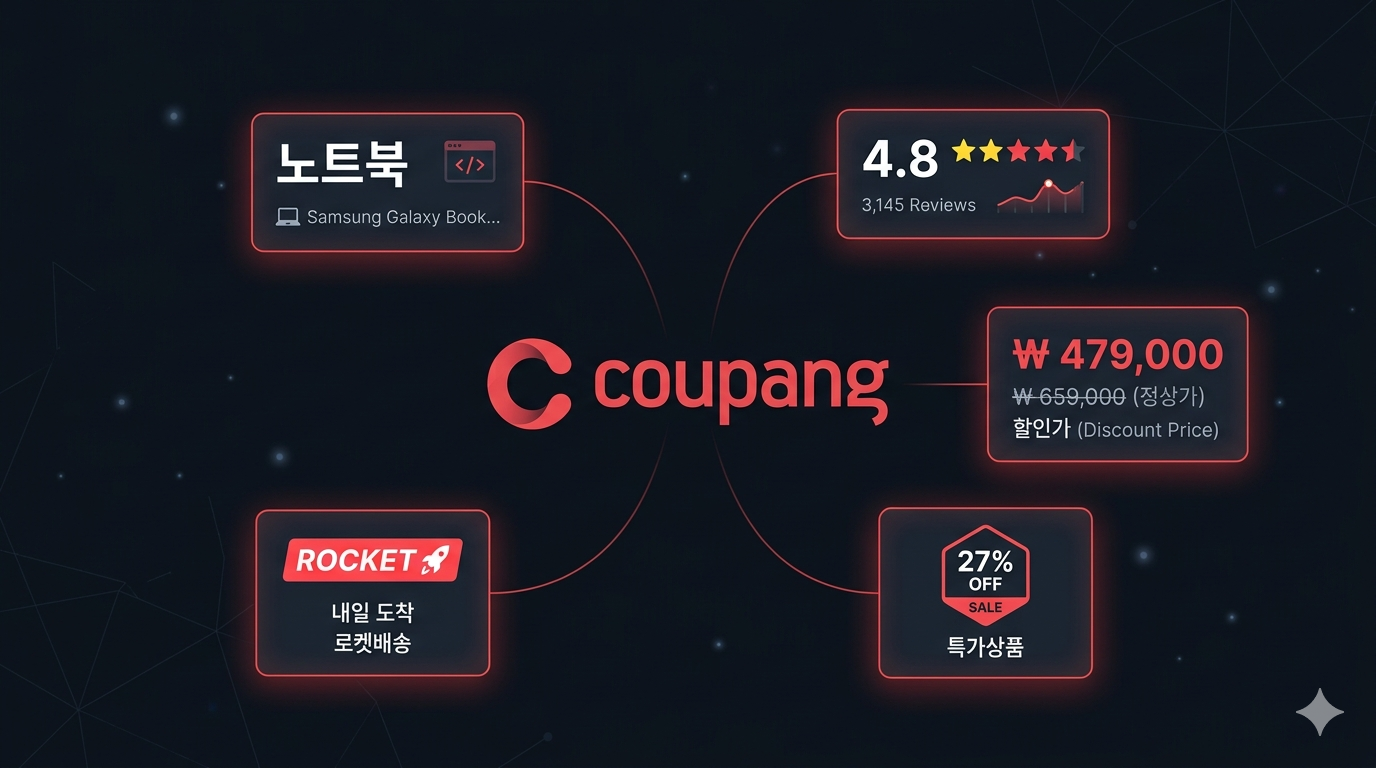
Choose one input source for the first run
The Actor supports several sources in the same run, but combining them immediately makes results harder to interpret. Start with one keyword if you are discovering offers, or a full product URL if you already know the offer you want to inspect.
Korean and English keywords are supported. 노트북 means laptop and is a reasonable broad test, though a final comparison should use a more specific model or specification. A broad search can include products that differ in memory, storage, processor, and operating system.
The first run needs no custom proxy or session input. The current schema exposes searchTerms, startUrls, productUrls, and maxResults.
Collect twenty search results
Open the Actor on Apify, switch Input to JSON, and paste:
{
  "searchTerms": ["노트북"],
  "startUrls": [],
  "productUrls": [],
  "maxResults": 20
}
maxResults is a total cap across the entire run, including any mixed input sources. Its allowed range is 1 to 10,000. It is not a per-keyword allowance, and zero is not accepted as an unlimited value.
Click Start, inspect the dataset, and open a few product links. Check whether the rows describe laptops relevant to your research before adding more search terms. Use the log to distinguish a small source result set from failed requests.
The existing screenshot shows an earlier result set:
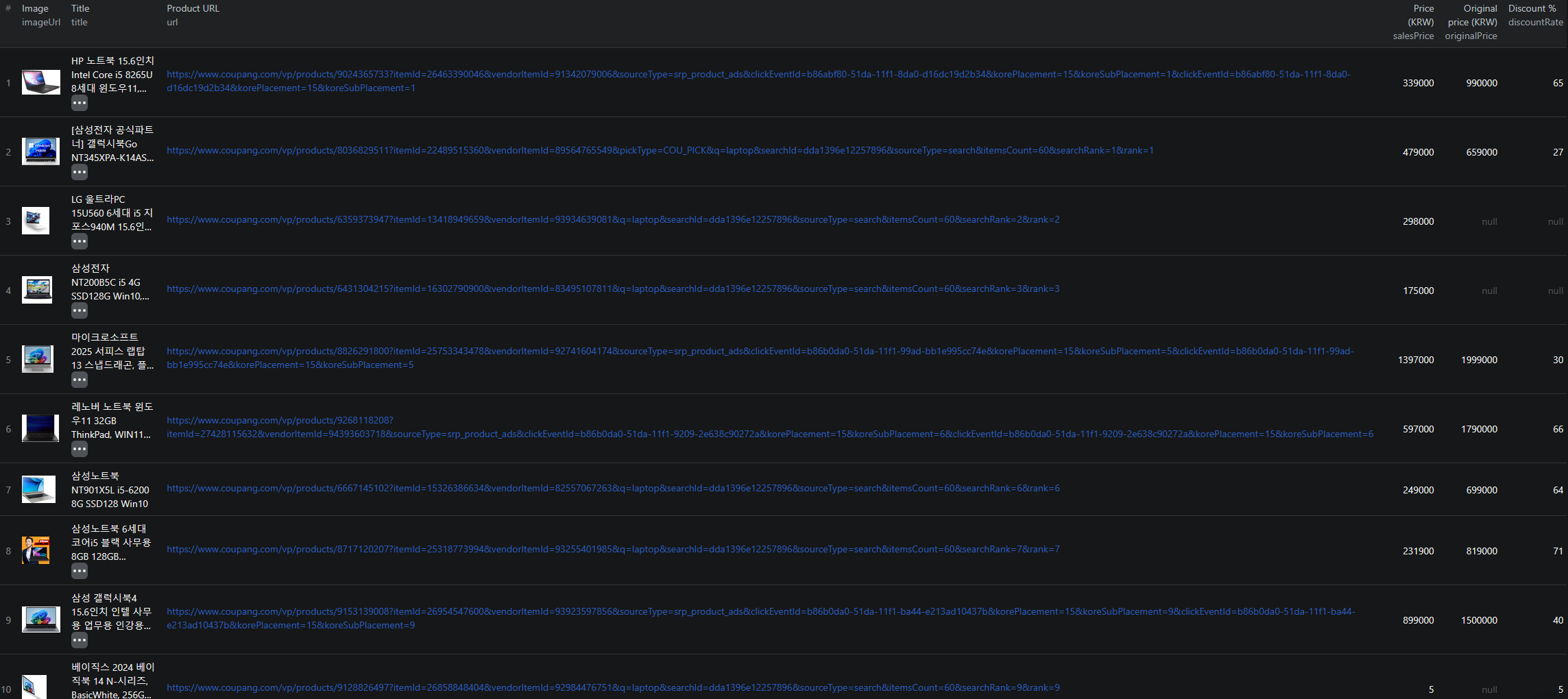
An abbreviated historical row contains the important identifiers and price fields:
{
  "productId": "8036829511",
  "itemId": "22489515360",
  "vendorItemId": "89564765549",
  "title": "[삼성전자 공식파트너] 갤럭시북Go NT345XPA-K14AS 윈도우11 14인치 휴대용 가성비 학생용 문서작성 5G LTE",
  "salesPrice": 479000,
  "originalPrice": 659000,
  "discountRate": 27,
  "cashback": 23950,
  "isRocket": true,
  "isSoldOut": false,
  "isAd": false,
  "source": "search",
  "searchTerm": "노트북",
  "pageNumber": 1
}
These prices are in Korean won. Keep a currency column with KRW in your export notes because this example does not contain one. The values are historical and should not be read as an offer available today.
Inspect a specific offer without losing its URL
When you want to revisit a result, preserve the full product link, including its itemId and vendorItemId parameters. A bare product ID identifies a product, but may not preserve the offer context you selected in the browser.
The input shape for one historical offer is:
{
  "searchTerms": [],
  "startUrls": [],
  "productUrls": [
    "https://www.coupang.com/vp/products/8036829511?itemId=22489515360&vendorItemId=89564765549"
  ],
  "maxResults": 1
}
Replace it with an accessible URL from your own results. Compare the returned identifiers with the URL you submitted before treating the run as a repeat observation of the same offer.
The direct-product mode returns a product record. It does not establish full customer-review extraction or a complete history of every vendor's prices. The supported output is the product and listing information described by the Actor.
Keep cashback and delivery out of the base-price calculation
Export CSV and retain productId, itemId, vendorItemId, title, url, salesPrice, originalPrice, cashback, and the delivery flags. Add collection time and currency. Use JSON if you want arrays such as badges intact.
Start by matching the exact model and configuration. Then compare the displayed salesPrice. Keep cashback in a separate column: a displayed reward is not automatically an immediate reduction in the amount every buyer pays.
In the historical row, 479,000 KRW is the sale-price field and 23,950 KRW is the cashback field. Subtracting them without checking eligibility and redemption rules would change the meaning of your comparison. Record a separate effective-cost calculation only when you have confirmed the terms that apply to your use case.
Similarly, isRocket, isRocketFresh, and isRocketMerchant are delivery-related signals, not a guaranteed arrival date for every address. Inspect the actual offer before using a badge as a delivery promise.
Make repeated observations comparable
Keep all three offer identifiers where populated, with the collection time. Deduplicate repeated observations within a snapshot, while retaining different vendor-item records when they represent different offers.
For a price-history sheet, compare matching identifiers and specifications between dates. If only productId matches, mark the comparison for review rather than assuming the configuration and seller stayed the same.
Retain searchTerm, pageNumber, rank, and isAd when studying placement. A rank observed for one keyword on one page is not an overall market ranking. Advertising and different search terms can change which offers appear in your limited sample.
If a row disappears, open its URL before marking it sold out. A missing search result and an explicit isSoldOut value are different observations. Missing ratings or delivery flags should also remain unknown unless the source establishes a value.
Check the rate for your Apify tier
Pricing as of September 6, 2026: current product event rates range from $0.001 to $0.0025 per result, depending on the Apify tier. At the Free-tier rate of $0.0025, twenty saved results correspond to $0.05 in product event fees. The Actor-start event is $0.00005 per GB of allocated memory, with at least one event.
A tier-price change is scheduled for September 9, 2026. Check the rate shown for your account on the live pricing page before budgeting recurring runs. The result cap controls volume, but your tier and the start charge still affect the total.
If the first run is empty, confirm that the keyword or URL works in Coupang and inspect the run log. For a mismatched direct-product result, compare the returned offer IDs and variant before expanding the watchlist.
The Coupang Node.js example is available when you want to automate the input and export steps.
Frequently asked questions
Is maxResults a limit for each keyword?
No. It is the total number of results across the run, including mixed keyword, URL, and product inputs.
Should I subtract cashback from salesPrice?
Keep them separate unless you have verified the reward terms and eligibility that apply to your comparison. A displayed cashback amount is not automatically an immediate price reduction.
Which ID should I retain for repeat checks?
Keep productId, itemId, and vendorItemId where available, along with the full URL and collection time. Check the returned identifiers before assuming two records describe the same offer.