How to scrape Xianyu listings and export them to CSV
You can collect Xianyu listing titles, asking prices, cities, and seller details with the Xianyu / Goofish Listings Scraper, an Actor I maintain on Apify. An Actor is a tool you run in your browser; Apify hosts it and stores the results.
The first decision matters: the home feed works without a Xianyu login; keyword search requires an authenticated session. If you want a list of used iPhones, you'll need search mode. If you want to inspect the available data first, start with the feed.
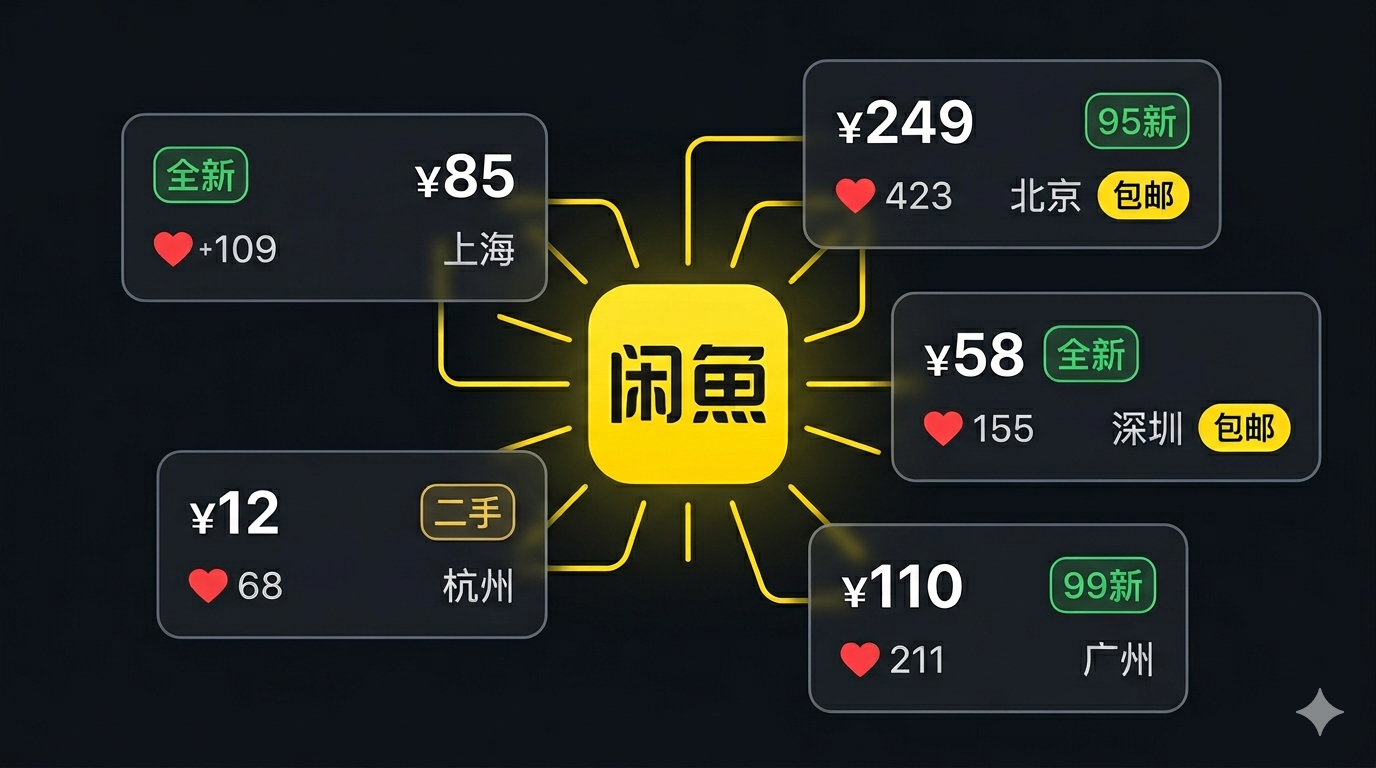
Choose the right starting point
| Your task | Mode | What you need |
|---|---|---|
| Try the output or browse a broad selection of listings | feed | An Apify account. No Xianyu login. |
| Find listings matching a product keyword | search | An Apify account and valid Taobao/Xianyu session state. |
| Add descriptions and seller statistics | Either mode, with fetchDetails | Extra detail-page requests and a higher result price. |
The feed is a selection of listings served by Goofish, Xianyu's website. It is not a complete or representative inventory of the marketplace. Adding keywords while leaving the mode on feed won't filter it.
For the first run below, collect up to 20 feed listings without detail enrichment. The listed result fee is $0.04 if all 20 are returned, plus the small Actor-start charge. Standard listings cost $2 per 1,000; enriched listings cost $6 per 1,000. The current start event is $0.00005 per GB of allocated memory, with a one-event minimum. Check live pricing before increasing the scope. These rates are as of September 6, 2026.
Collect your first 20 listings
1. Open the Actor and set the input
Open the Xianyu scraper and choose Try for free. Sign in to Apify if prompted. In the Actor's Input form, set Scrape Mode to Home Feed (no login), set Max Items to 20, and leave Fetch Item Details off.
You can also switch the input editor to JSON and paste:
{
  "mode": "feed",
  "maxItems": 20,
  "fetchDetails": false
}
maxItems is a ceiling, not a promise of that many results. Leave the other settings at their defaults for this small first run.
2. Run it and inspect a few rows
Click Start. When the run finishes, open its output dataset. Check a listing's title, price, currency, and url before exporting the whole file. If the run fails or returns nothing, inspect the log before repeating it.
Example output is shown below. Your run will return different listings.
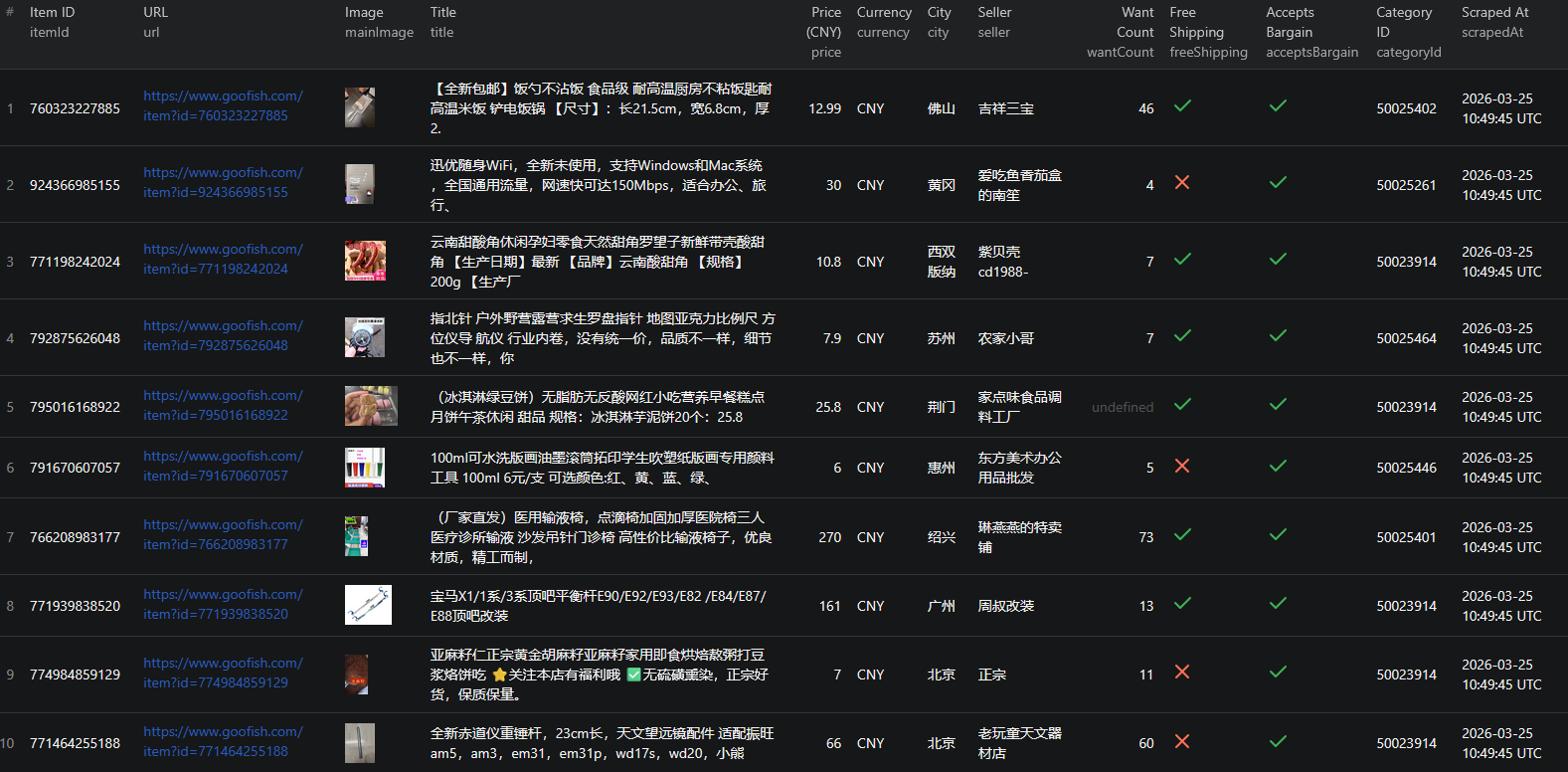
For reference, here is an abbreviated record from the Actor's published sample, dated March 25, 2026:
{
  "itemId": "956904261043",
  "title": "进口原装Alpha wire 阿尔法电子线2634BK001",
  "price": 85,
  "currency": "CNY",
  "city": "上海",
  "condition": "全新",
  "seller": "黑色羽翼",
  "wantCount": 4,
  "acceptsBargain": true,
  "url": "https://www.goofish.com/item?id=956904261043",
  "scrapedAt": "2026-03-25T18:12:00.000Z"
}
This seller is asking CNY 85 for the item. Four people have expressed interest, and offers are accepted. None of those fields tells you whether it sold or what a buyer eventually paid.
3. Export to CSV
Use Export on the dataset and select CSV. For a manageable first spreadsheet, keep itemId, title, price, currency, condition, city, seller, wantCount, url, and scrapedAt.
Open the CSV in Excel or Google Sheets. If Chinese characters look garbled in Excel, import the file through Data → From Text/CSV and select UTF-8 instead of opening it by double-clicking. Keep the JSON export too if you need arrays such as images.
When you need keyword search
Search mode requires a logged-in Taobao/Xianyu session exported as Playwright storage state. This is a technical setup step, even though the Actor itself runs on Apify. It is best suited to someone who already has a working account and can use Node.js.
Once you have the session, change Scrape Mode to Keyword Search (login required), enter a single keyword, and put the encoded session in Session State (base64). For example:
{
  "mode": "search",
  "keywords": ["iphone 13"],
  "maxItems": 20,
  "fetchDetails": false,
  "sessionStateBase64": "REPLACE_WITH_YOUR_ENCODED_SESSION"
}
The session value above is a placeholder. In search mode, the item limit applies per keyword. Three keywords with maxItems: 20 can return up to 60 listings, before any downstream deduplication.
Export a session with Node.js and Playwright
Use a separate local folder. You'll need Node.js installed and a Xianyu account you can sign in to in a browser. Install Playwright and its Chromium browser:
npm init -y
npm install playwright
npx playwright install chromium
Save the following as export-session.mjs. It opens Goofish, waits for you to finish signing in, then saves the encoded session locally.
import { chromium } from 'playwright';
import { createInterface } from 'node:readline/promises';
import { stdin, stdout } from 'node:process';
import { writeFile } from 'node:fs/promises';

const browser = await chromium.launch({ headless: false });
const prompt = createInterface({ input: stdin, output: stdout });
try {
  const context = await browser.newContext();
  const page = await context.newPage();
  await page.goto('https://www.goofish.com/');
  await prompt.question('Finish signing in, then press Enter here. ');
  const state = await context.storageState();
  const encoded = Buffer.from(JSON.stringify(state)).toString('base64');
  await writeFile('xianyu-session.txt', encoded, {
    encoding: 'utf8', mode: 0o600, flag: 'wx'
  });
  console.log('Saved xianyu-session.txt. Keep this file private.');
} finally {
  prompt.close();
  await browser.close();
}
Run node export-session.mjs. Complete the sign-in process yourself, then press Enter in the terminal. Copy the contents of xianyu-session.txt into the Actor's session field. Treat that file like a password: don't commit it to Git or include it in screenshots. The script refuses to overwrite an existing file; remove your old session file when intentionally refreshing it.
This exports a session you establish yourself. It cannot create an account, complete verification for you, or guarantee that the session will remain valid. If you cannot sign in, use feed mode until account access is resolved.
Make a price comparison you can defend
A spreadsheet of unrelated feed items won't tell you the going price of a used phone. First use the small feed run to check that the fields are useful. Then switch to a targeted search when you have a working session.
For a product comparison:
- Search for a specific model, then keep listings for the same model, storage, and condition. Remove accessories and repair-only offers by reviewing their titles and pages.
- Deduplicate repeated listings by
itemId. KeepscrapedAtso you know when each asking price was observed. - Separate condition groups. For example,
全新means brand new; mixing those listings with used units will distort the comparison. - Exclude missing prices and check unusually low ones against the listing page. They may refer to a deposit, accessory, or different configuration.
- Calculate the median asking price for each comparable group. Record the sample size alongside it.
The result is a view of asking prices in your collected sample. It can help you spot listings worth reviewing, but it doesn't establish a market-wide selling price. For comparisons with Mercari, account for currency, condition, shipping, and the exact product configuration.
If the results aren't what you expected
Unrelated products: check the mode first. Keywords only take effect in search mode. Feed mode always returns the home feed.
Search worked before but now fails: the session may have expired. Sign in again, export fresh storage state, and retry one keyword. The Actor recommends mainland China residential proxies for search; its default proxy setting is off, so review Proxy Configuration when setting up that mode.
Missing descriptions or seller ratings: those require fetchDetails: true. Turn it on for a small run only if you need them. A missing source field should stay missing in your analysis rather than being filled with an assumed value.
Fewer rows than the limit: available results, source restrictions, and failed requests can reduce the output. Check the log and sample URLs. Increasing the limit won't resolve a login problem.
For a scheduled workflow, first get a manual run working, then save the input as an Apify task and schedule that task. Store snapshots with itemId and scrapedAt; scheduling alone doesn't calculate price changes. The existing Node.js example is a starting point for API access.
Questions before you run
Can I scrape Xianyu without an account?
You need an Apify account to run the Actor. You do not need a Xianyu account for home-feed mode. Keyword search requires an authenticated Taobao/Xianyu session.
Are the prices completed sale prices?
No. The price field is the listing asking price in CNY. Want counts indicate interest, not purchases, and the dataset does not establish a final transaction price.
Can I collect 20,000 listings in one run?
The current input schema accepts maxItems values from 1 to 10,000. That limit is total in feed mode and per keyword in search mode. Actual output can be lower; do not treat the limit as guaranteed coverage.